
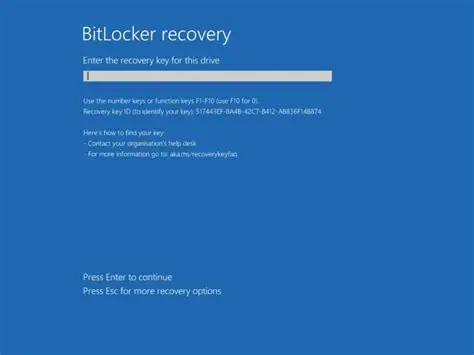
If your computer suddenly starts asking for a BitLocker recovery key, it can be confusing and even alarming—especially if it was working fine before. BitLocker is a built-in encryption feature in Windows that protects your data by requiring authentication when the system detects something unusual.
While it may seem like something is wrong, in many cases the issue is temporary and easy to fix. Below, we’ll explain why your computer may be asking for the BitLocker key, the most common causes, and what you can do to resolve the problem.
What Is BitLocker?
BitLocker is a full-disk encryption feature available in many versions of Microsoft Windows. It protects your data by encrypting the drive so that unauthorized users cannot access the files.
Normally, BitLocker unlocks automatically when the system starts because it recognizes the device’s hardware configuration. However, if Windows detects something that could indicate a security risk, it may request the BitLocker recovery key before allowing the system to boot.
Common Reasons Your Computer Is Asking for the BitLocker Key
1. Sudden Power Loss or Improper Shutdown
One of the most common causes is an unexpected power interruption.
Examples include:
- The power cable was unplugged
- A laptop battery died suddenly
- A power outage occurred
- The computer shut down during an update
When this happens, the system may not complete the normal decryption or boot process. BitLocker may interpret this as a potential security risk and request the recovery key the next time the system starts.
Simple solution:
Sometimes the issue resolves itself with a normal reboot. If the system was interrupted mid-process, restarting the computer again may allow Windows to boot normally.
2. Hardware Changes
BitLocker monitors system hardware to detect potential tampering. If something changes, it may trigger recovery mode.
Common hardware changes include:
- Replacing the motherboard
- Installing or removing storage drives
- Changing BIOS or UEFI settings
- Updating firmware
- Modifying TPM settings
Because these changes alter the system’s security profile, BitLocker may request the recovery key to verify the device owner.
3. BIOS or UEFI Updates
Updating the system firmware can also trigger BitLocker recovery mode. Since firmware is part of the boot process, any change to it may be interpreted as a possible security event.
4. TPM (Trusted Platform Module) Issues
The Trusted Platform Module (TPM) stores the encryption keys used by BitLocker. If Windows cannot communicate with the TPM correctly, it may require the recovery key.
Possible causes include:
- TPM reset or corruption
- BIOS settings changes
- Firmware glitches
5. Windows Updates or System Changes
Some major Windows updates modify the boot environment. While rare, this can occasionally trigger BitLocker recovery.
What You Should Do When Asked for the BitLocker Key
1. Restart the Computer
Before assuming something serious is wrong, try restarting the system again.
In many cases—especially after sudden power loss—the computer may simply have failed to complete the normal boot or decryption process. A restart can allow Windows to recover and boot normally.
2. Locate Your BitLocker Recovery Key
If the system still requests the key, you will need the 48-digit BitLocker recovery key.
It may be stored in several places:
- Your Microsoft account (most common)
- A printed copy
- A saved text file or USB drive
- Your organization’s IT department
- Your Managed Service Provider
If your device is linked to a Microsoft account, you can typically retrieve it online by logging into your account and viewing your recovery keys.
https://account.microsoft.com/devices/recoverykey

3. Enter the Recovery Key
Match the Key ID from the BitLocker blue screen to get the needed Recovery Key. Once you enter the correct recovery key, Windows should unlock the drive and allow the system to start normally.
4. Resume or Re-Enable BitLocker
After gaining access to Windows, it may be helpful to:
- Verify BitLocker status
- Resume protection if it was paused
- Check for pending updates
- Restart the system again
This can help prevent repeated recovery prompts.
Preventing Future BitLocker Recovery Prompts
To reduce the chances of seeing the recovery screen again:
- Avoid interrupting updates or shutdowns
- Use a reliable power source or battery backup
- Save your BitLocker recovery key in a safe location
- Pause BitLocker before performing BIOS or hardware changes
Final Thoughts
Seeing a BitLocker recovery key prompt does not always mean something is seriously wrong. Often, the system is simply responding to a change or interruption—such as a power outage or sudden shutdown.
In some cases, a simple restart may resolve the issue, especially if the computer did not complete the boot or decryption process properly. If the prompt persists, entering the recovery key will restore access to the system.
Keeping your recovery key stored safely ensures you can always regain access to your encrypted data if BitLocker recovery mode is triggered.