
When you click links in Microsoft Outlook or Teams, you may see a one-time prompt: “Message links from Outlook open in Microsoft Edge so you can see your email without switching apps. This setting will affect how web links are opened across Outlook and Teams. You can also change this any time.” This sets Microsoft Edge as the default for opening links with an email/chat sidebar. If you dismissed the prompt or want to use your system’s default browser (e.g., Chrome or Firefox) instead, this guide shows how to configure Outlook 2016 and later (including New Outlook in Microsoft 365) and Teams using app settings or Registry Editor (regedit). We’ll also explain how to make the prompt reappear.
Note: If your organization uses Group Policy to enforce Edge, these settings may be locked—contact your IT admin.
Method 1: Change Settings in Outlook/Teams (UI-Based)
For New Outlook (Microsoft 365)
- Open Outlook (ensure the “New Outlook” toggle is on, if applicable).
- Go to Settings > General > Links
- Under Links choose Default browser.
- Click Save and restart Outlook.
- Click a link in an email
- It may first open in Edge with a prompt to check the settings, select Use system default (Google Chrome) and click Confirm.
- Test another link, which should open in Chrome.
For Classic Outlook (2016)
- Open Classic Outlook 2016 (toggle off “New Outlook” if needed).
- Go to File > Options.
- Select Advanced.
- Under File and browser preferences or Link handling, set “Open hyperlinks from Outlook in:” to Default browser.
- Click OK and restart Outlook.
- Test a link to confirm it opens in your default browser.
For Microsoft Teams
- Open Teams.
- Click your profile picture (top right) > Settings.
- Go to General or Files and links (varies by version).
- Under Link open preference, select System default browser.
- Restart Teams.
Verify Your Default Browser
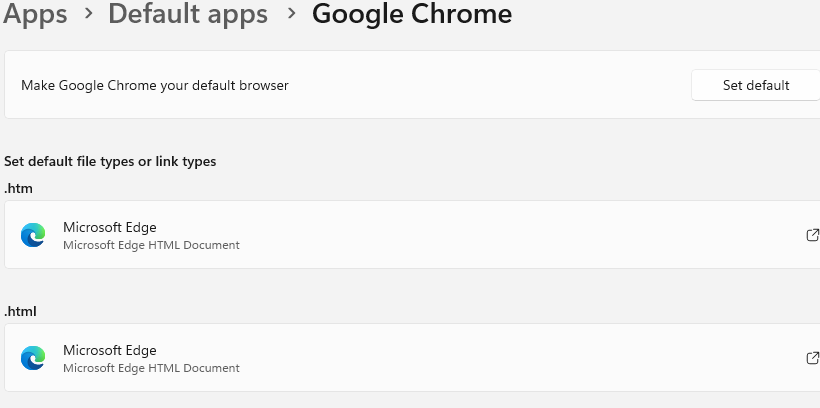
- Go to Windows Settings > Apps > Default apps.
- Search for your preferred browser (e.g., Chrome) and click Set default.
- This ensures all apps, including Outlook/Teams, respect your choice.
Method 2: Use Registry Editor (regedit)
You can modify the Windows Registry to remove the previously selected options for Outlook 2016 and later (including Microsoft 365) and Teams, which share Office’s link-handling settings. Back up your registry (File > Export in regedit) before proceeding.
- Press Win + R, type
regedit, and press Enter (run as admin if prompted). - Navigate to:
HKEY_CURRENT_USER\SOFTWARE\Microsoft\Office\16.0\Common\Links. - Remove all but the (Default) Key.
- Close regedit, Outlook and Teams.
- Go to Settings [Win – I], Click Apps, Click Default Apps.
- Click Google Chrome, then click Set default.
- Open Outlook and/or Teams.
- Click a link, which will first open in Edge with a prompt to Use Edge or Manage my settings.
- Click Manage my settings.
- Select Use system default (Google Crome), click Confirm
- Click another link to test that it will open in Chrome
Method 3: Automate with a Batch Script
This batch script sets the registry to use the default browser for Outlook 2016 and later (version 16.0) and Teams. Save it as set_outlook_browser.bat and run as administrator.
reg add “HKEY_CURRENT_USER\SOFTWARE\Microsoft\Office\16.0\Common\Links” /v DecisionPending /t REG_BINARY /d 01000000 /f
reg add “HKEY_CURRENT_USER\SOFTWARE\Microsoft\Office\16.0\Common\Links” /v DecisionComplete /t REG_BINARY /d 01000000 /f
reg add “HKEY_CURRENT_USER\SOFTWARE\Microsoft\Office\16.0\Common\Links” /v BrowserChoice /t REG_BINARY /d 01000000 /f
- Run the script: Right-click the .bat file > Run as administrator.